




Barcode printers are essential for smooth inventory, shipping, and retail operations. Driver conflicts, corrupted system files, and incorrect port mapping remain the top causes of printing errors for enterprise users and IT administrators.
Proper driver configuration ensures labels print correctly, barcodes scan reliably, and print alignment is precise, reducing delays and minimizing operational disruptions.
This guide focuses exclusively on barcode printer driver issues, with practical steps to resolve installation failures, print errors, misalignment, emulation conflicts, and connectivity problems.
Quick Reference: Common Barcode Printer Driver Issues & Solutions
| Common Issue | Likely Root Cause | Recommended Action |
|---|---|---|
| Printer not printing / blank labels | Corrupted driver or stuck spooler service | Restart the Windows Print Spooler; verify driver media settings |
| Driver installation fails | Antivirus interference or lack of admin rights | Run the official manufacturer driver installer as Administrator |
| Labels wrong size / misalignment | Incorrect page size in driver preferences | Configure exact label dimensions and calibrate sensors in driver |
| Barcodes not scanning | Low darkness settings or wrong DPI resolution | Adjust print speed and density/darkness in printer properties |
| Printer shows as offline | USB port conflict or WSD port takeover | Re-map the driver port to USB001; bypass Windows WSD |
| Endless gibberish / printing code | Mismatched driver emulation (PCL vs. TSPL) | Reinstall dedicated TSPL/ZPL driver or Drivers by Seagull |
| Poor print quality / fading | Incorrect darkness, speed, or DPI settings in the driver | Adjust darkness and print speed in driver properties |
Understanding Barcode Printer Drivers
A barcode printer driver translates label designs into printer-readable programming languages such as TSPL, ZPL, or EPL. In real-world operations, driver configuration affects whether 4×6 shipping labels print correctly for Amazon FBA, Shopify, and ShipStation workflows, whether warehouse inventory labels scan reliably, and whether retail shelf labels align accurately without media waste.
On Windows 10 and Windows 11, barcode printer drivers manage communication through USB, Ethernet, or Bluetooth connections. Many organizations also use Seagull Scientific Drivers with BarTender software for more advanced label formatting and printer control.
For advanced ERP, WMS, or POS integrations, a Printer SDK may be used alongside the driver to trigger batch print jobs or send commands directly to the printer. However, most installation, alignment, offline, and barcode readability problems should still be diagnosed first through the printer driver settings.
On macOS, driver compatibility is especially important because operating system updates can disrupt older installations, resulting in printer offline errors, communication failures, or unexpected printing interruptions.
Step-by-Step Troubleshooting for Common Driver Problems
Barcode printer driver issues often appear as blank labels, misalignment, offline status, unreadable barcodes, or random code printing. The sections below explain how to identify the driver-related cause and apply the right fix.
Why Is My Barcode Printer Printing Blank Labels or Not Printing at All?
Common Driver Cause: Blank labels or no output are often caused by a corrupted driver, a stuck Windows Print Spooler, incorrect media type settings, or driver settings that do not match the label stock.
Step-by-Step Driver Fixes:
- Restart the Windows Print Spooler: Press Win + R, type
services.msc, find Print Spooler, and click Restart to clear stuck print jobs. - Check media type in the driver: Go to Printers & Scanners > Printing Preferences and confirm whether the printer is set to Direct Thermal or Thermal Transfer correctly.
- Run driver calibration: Use the printer utility or driver settings to calibrate label gaps, black marks, or continuous media.
- Remove old driver conflicts and check the printhead: If the issue continues, uninstall duplicate or legacy printer drivers and reinstall the correct barcode printer driver. If blank labels continue after the driver, port, and media settings are verified, check whether the thermal printhead is dirty or damaged and clean it according to the manufacturer’s guidelines.
Why Does My Barcode Printer Driver Installation Keep Failing?
Common Driver Cause: Driver installation may fail because of missing administrator permissions, antivirus blocking driver files, OS incompatibility, or Windows assigning a generic USB driver too early.
Step-by-Step Driver Fixes:
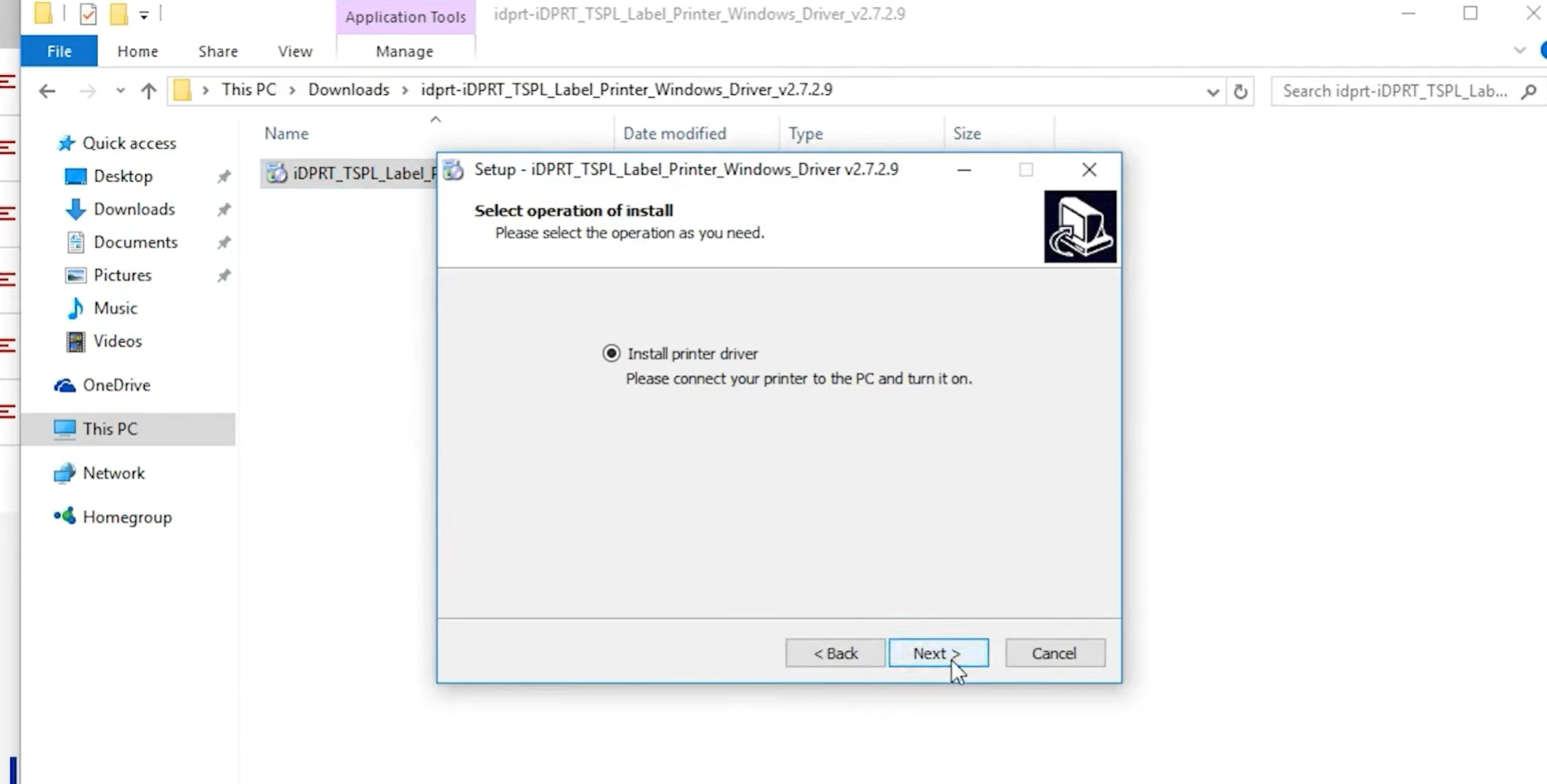
- Run the installer as Administrator: Right-click the driver .exe file and choose Run as administrator.
- Check OS compatibility: Make sure the driver supports your version of Windows 10, Windows 11, or macOS.
- Connect the printer only when prompted: Keep the USB cable disconnected until the installation wizard asks you to connect the printer.
- Restart after installation: Restart the computer so Windows can register the driver, spooler service, and printer port correctly.
For Windows driver installation, you may refer to the iDPRT SP410 shipping label printer Windows driver installation video.
Why Are My Barcode Labels Printing Misaligned or Off-Center?
Common Driver Cause: Misalignment usually happens when the driver page size, label software size, or media tracking mode does not match the actual label stock.
Step-by-Step Driver Fixes:
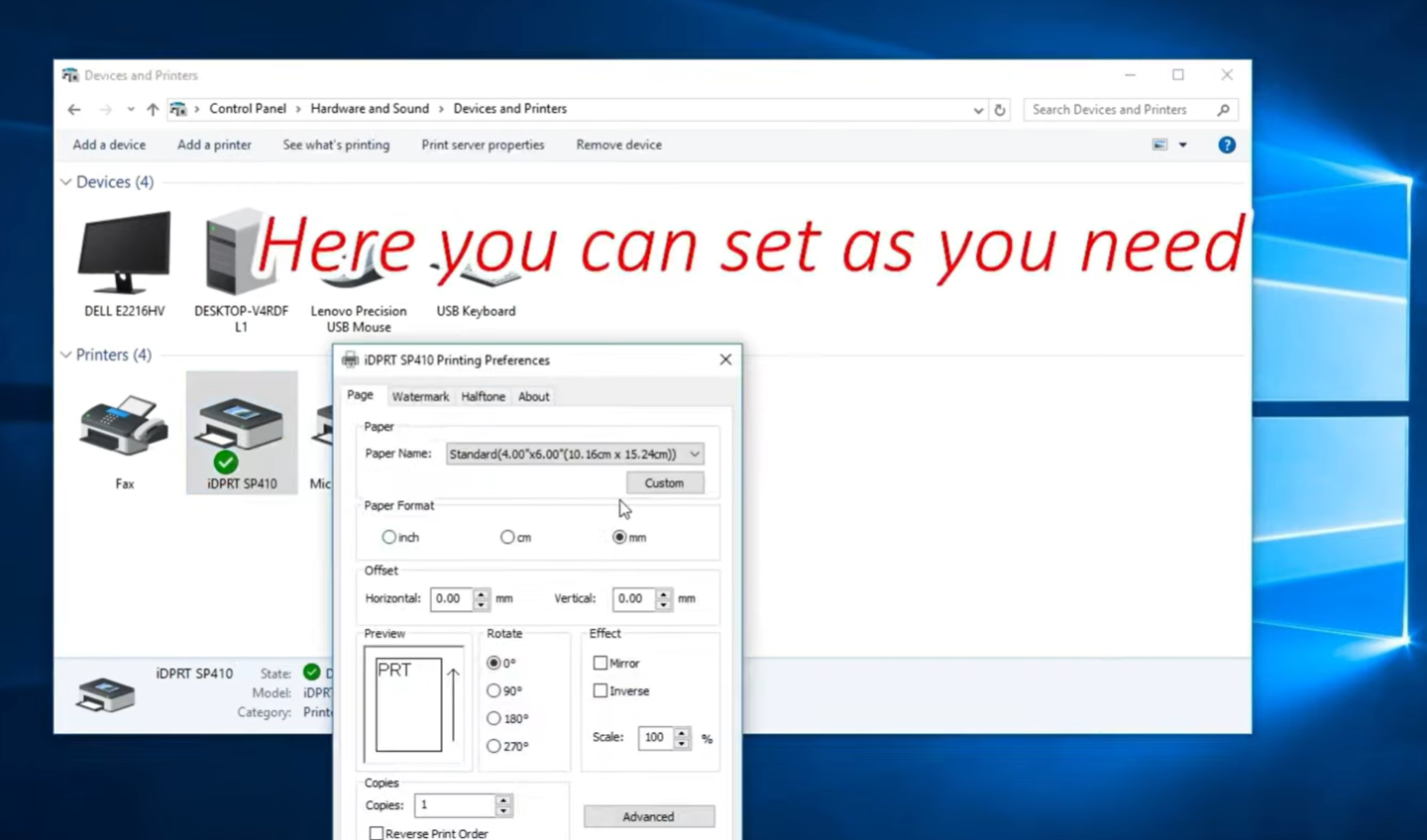
- Set the exact label size: In Printing Preferences > Page Setup, create a custom size such as 4" × 6" shipping labels or 2" × 1" barcode labels.
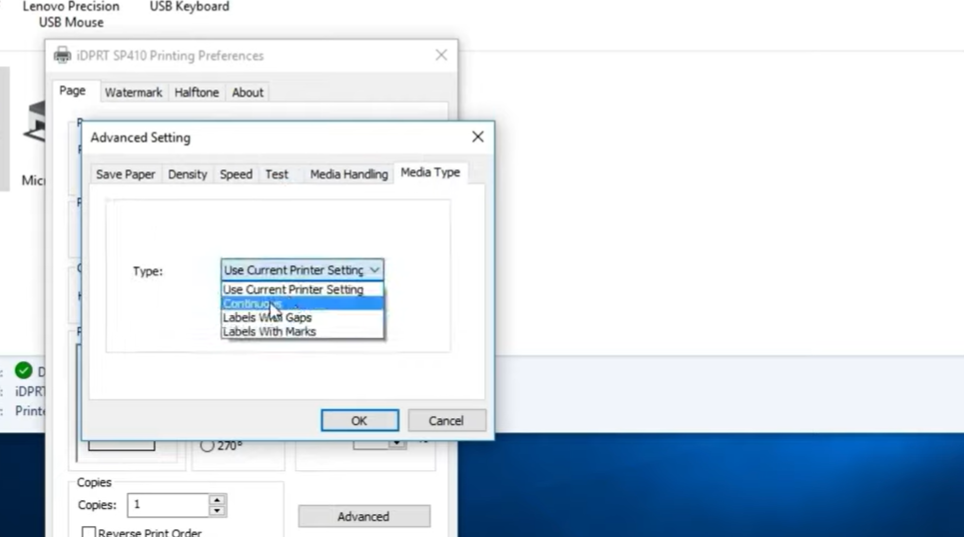
- Select the correct media tracking mode: Choose Label with Gaps, Black Mark, or Continuous Media in the driver’s media settings.
- Match software and driver settings: Make sure BarTender, Shopify shipping apps, ShipStation, or other label software uses the same label size as the driver.
- Run sensor calibration: Calibrate the printer after changing label size, label roll, or media type.
Why Won’t My Printed Barcodes Scan After Driver Setup?
Common Driver Cause: Unreadable barcodes are often linked to low darkness, excessive print speed, wrong DPI settings, or barcode files being printed as low-resolution images.
Step-by-Step Driver Fixes:
- Adjust darkness or density: Increase Darkness, Density, or Heat Level gradually in the driver settings.
- Reduce print speed: Lower the speed, such as 3 IPS or 4 IPS, to produce sharper barcode edges.
- Check DPI settings: Confirm whether the label requires 203 DPI or 300 DPI, especially for small labels or dense barcodes.
- Use vector barcode objects: In BarTender, iDPRT Label Designer, or other label software, generate barcodes as native objects instead of low-resolution images.
Why Does My Barcode Printer Show as Offline or Not Detected on Windows?
Common Driver Cause: Offline or not detected errors are often caused by Windows assigning a WSD port, USB port conflicts, duplicate driver instances, or an outdated network IP port.
Step-by-Step Driver Fixes:
- Check the driver port: Go to Printer Properties > Ports and make sure the printer uses a stable port such as USB001 or the correct TCP/IP port, not a temporary WSD port.
- Remove duplicate printers: Delete inactive copies such as “Printer Copy 1,” restart the Print Spooler, and set the correct barcode printer driver as default.
- Reconnect after driver setup: Reconnect the USB cable only after confirming the correct driver is installed.
- Verify network IP settings: For Ethernet barcode printers, use the printer utility to confirm the IP address and update the driver port if needed.
Why Is My Barcode Printer Printing Gibberish or Random Code?
Common Driver Cause: Random code or gibberish usually means the driver, label software, and printer command language are not aligned. This can happen when a generic Windows, PCL, or PostScript driver is used instead of a dedicated TSPL, ZPL, or EPL barcode printer driver.
Step-by-Step Driver Fixes:
- Clear the print queue: Cancel all pending print jobs before changing driver settings.
- Install the correct emulation driver: Use the official manufacturer driver or certified Drivers by Seagull that match the printer language, such as TSPL, ZPL, or EPL.
- Check printer selection in label software: In BarTender, shipping software, or warehouse labeling systems, make sure print jobs are sent to the dedicated barcode printer driver.
- Match driver, software, and printer language: If the software sends ZPL but the printer is set to TSPL mode, the printer may output raw code instead of labels.
- Check firmware compatibility if the issue continues: If the correct TSPL, ZPL, or EPL driver is installed but the printer still outputs random code, verify that the printer firmware is up to date and configured for the selected command language or emulation mode.
Final Thoughts
Understanding and fixing barcode printer driver issues can dramatically improve your daily operations. Whether you’re troubleshooting blank labels or integrating via SDK, the solutions above address the real problems users face in 2026.
Need more help with your IDPRT barcode printer?
Visit our Support Center — we’re here to keep your business printing smoothly.
Frequently Asked Questions (FAQ)
Q1: Where should I download barcode printer drivers?
A: Download drivers only from the official manufacturer website or trusted driver providers such as Drivers by Seagull. Avoid random third-party driver sites.
Q2: Why is my barcode printer not printing after driver installation?
A: The most likely causes are a stuck Print Spooler, wrong port mapping, or incorrect media settings. Restart the Print Spooler, check the USB/TCP/IP port, and verify Direct Thermal or Thermal Transfer settings.
Q3: Why does my barcode printer show offline on Windows?
A: This is often caused by Windows assigning a WSD port or creating duplicate printer copies. Switch the driver to USB001 or the correct TCP/IP port, then remove inactive duplicates.
Q4: Why are my barcode labels misaligned?
A: Misalignment usually means the driver label size does not match the label software or physical media. Set the exact label size in Printing Preferences and run sensor calibration.
Q5: Why is my barcode printer printing random code or gibberish?
A: The wrong emulation driver is usually installed. Use the correct TSPL, ZPL, or EPL barcode printer driver instead of a generic Windows, PCL, or PostScript driver.